Your opening hours have changed. You have a new project to show, a recipe to share or an event to announce. Do you need someone to rewrite your website every time?
A content management system, usually shortened to CMS, is software that lets you create, edit and publish website content through an editing screen. For everyday changes, you can often work with text and images without writing code.
The important question is whether the system makes the updates you actually need straightforward—and whether you know who will look after everything else.
What can you do with a CMS?
Imagine updating a service description. You sign in, open the page, change the wording, preview it and save the update. The website uses its existing design to display the revised content.
Depending on the platform and how the site is built, a CMS may let you:
- Add or edit pages and blog posts.
- Upload photographs and update captions.
- Organize articles into categories.
- Save drafts or schedule publication.
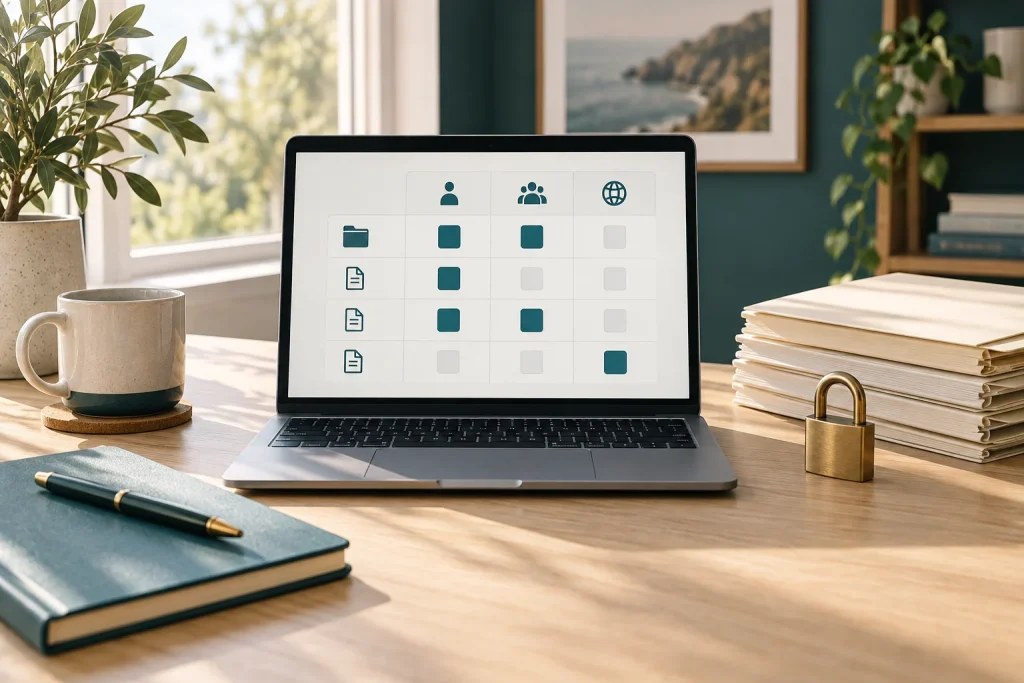
- Give other people permission to contribute.
WordPress includes these kinds of publishing and user-management features. Other systems offer their own combinations of tools. Booking systems, online shops and memberships may require additional features, subscriptions or development.
Do you actually need a CMS?
A CMS is especially useful when you expect to publish articles, add projects, change services or update products regularly. It can also help when several people contribute to a website.
If you only need a small website with information that rarely changes, you may not need a full content-management system. A simple site maintained by your developer could be enough. Ask how occasional changes would be requested, what they would cost and how quickly they could be made.
You can also have a CMS and let someone else manage it. The choice is about the website’s needs as well as how involved you want to be.
How is it different from a website builder?
The terms overlap. A website builder usually emphasizes arranging pages visually, while a CMS emphasizes managing content. Many products do both.
For WordPress, a theme provides much of the site’s design, and plugins add functions. Your editing experience also depends on how those pieces have been configured. Two WordPress websites can feel very different to manage.
If you are comparing designs, our guide to choosing a WordPress theme explains what to consider beyond the preview image.
Hosted or self-hosted: who handles the technical work?
Hosting is the service that keeps your website available on the internet.
With a hosted website service, the platform provides hosting alongside its editing tools. With self-hosted software, you choose a hosting provider and arrange the website’s setup and care yourself or through someone you hire.
WordPress illustrates this distinction: WordPress.com is a hosted service, while the WordPress software available through WordPress.org can be installed with a hosting provider of your choice. WordPress.com’s comparison explains these arrangements.
Self-hosted does not mean you must run a server at home or handle every technical task personally. You can use managed hosting and hire maintenance support. Check the scope: hosting support and ongoing website maintenance are not always the same service.
Which approach should you investigate first?
Start with what the website needs to do. These examples can help you narrow the options.
A personal or hobby blog: You want to publish stories and photographs regularly. Focus on a comfortable writing editor, simple image handling and clear categories. A hosted blogging service is a sensible starting point if you prefer bundled technical support. Self-hosted WordPress is also worth considering if you want more control over hosting and customization and have a plan for maintenance.
A small service business: You need service descriptions, project examples and a reliable enquiry form. A hosted builder may suit a straightforward site; self-hosted WordPress may suit you if you need particular integrations or custom features. Ask to see how you would update a service or add a project. You should not have to learn every design setting to change a few words.
An online shop: You need to manage products, payments and orders. Begin with those requirements rather than choosing a platform because you like its templates. Ask for a demonstration of adding a product, handling shipping or collection, and processing a refund. Compare the available tools, support, ongoing fees and options for moving your data later.
These are starting directions, not fixed rules. Choose the simplest arrangement that meets your essential needs and leaves room for realistic growth.
What will it really cost?
Free software does not necessarily mean a free website. Compare the total cost of:
- Hosting and your domain name—the address visitors type.
- Design, setup and any content migration.
- Paid themes, plugins, apps or platform upgrades.
- Maintenance, backups and support.
- Payment-processing or transaction fees if you sell online.
Ask about renewal prices as well as introductory offers. Also consider your time: a cheaper plan may be less useful if routine changes are difficult or a necessary feature costs extra.
Can you take your website with you?
Before committing, ask what you can export and what would need rebuilding if you change platforms.
A content export is not always a complete copy of a working website. For example, WordPress.com’s standard export transfers content but does not include the theme design, customizations or plugins. A full migration may require additional steps.
Some platforms have stronger hosting restrictions. Wix explains that its sites rely on its own technology and cannot be hosted with another provider. That is a practical consideration when comparing options, rather than a reason to reject the platform in every situation.
Keep access to the accounts you need, including your domain registration. If someone builds the site for you, agree on account access, handover materials and ongoing responsibilities from the start.
Everyday editing and maintenance are different jobs
Changing your opening hours is a content task. Updating software and checking that your contact form still sends messages are maintenance tasks. Being comfortable with one does not mean you need to take responsibility for both.
You might manage articles and photographs while your provider handles technical care. Before launch, agree on who handles updates, backups, security checks and problems with forms or other features. Ask what support includes and what would cost extra.
What a CMS does not take care of by itself
An editing screen makes content management easier, but a website still needs care.
Security: Establish who handles software updates, account protection and recovery if something goes wrong. No CMS makes a website immune to attacks.
Backups: Confirm what is backed up, where copies are kept and how a restoration would work. A saved draft or revision is not a substitute for a complete recovery plan.
Accessibility: An editor that feels easy to use does not guarantee that the finished website works well for people with disabilities. Headings, image descriptions, colour contrast, keyboard navigation and forms still need attention.
Search visibility: Search engine optimization, or SEO, means helping search engines understand your content and helping people find relevant pages. A CMS can provide useful controls, but it cannot guarantee rankings or visitors.
Try these tasks before choosing
Ask for a safe practice site using the editor you would actually receive. Then try:
- Open a sample page and change one sentence.
- Replace a photograph and add a short description for visitors who cannot see it.
- Preview the page at a mobile screen size and check that the text and image make sense.
- Create a short post and save it as a draft without publishing it.
- Leave the editor, return and find your saved draft.
Could you repeat those tasks without help? Was the difference between saving and publishing clear? If not, ask for a simpler setup or some training. Difficulty with an unfamiliar editor does not mean you cannot manage a website.
If someone else will contribute, also ask whether they can edit content without being given control of the entire site.
If WordPress is on your shortlist, our guide to trying WordPress offers a starting point. A short practice session can tell you more about suitability than a long feature list.
Prepare a short website brief
Before choosing a platform or requesting a quote, write down:
- Purpose: What should visitors be able to learn or do?
- Essential features: Do you need articles, a gallery, enquiries, bookings or online sales?
- Update frequency: Will you change content weekly, monthly or only occasionally?
- Budget: What can you spend on setup and ongoing costs?
- Your involvement: Which tasks do you want to handle, and which would you prefer someone else to manage?
Separate essentials from features that would simply be nice to have. You can use this brief to compare options yourself or discuss them with a website professional.
Choose the support level that suits you
You might want to manage every article yourself, handle only occasional text changes or have someone maintain the whole website. All are reasonable choices.
Econoweb Designs can help you assess your requirements, understand the editing process and decide which tasks you want to handle. Maintenance and assistance can be tailored to your needs.
Tell us what you want to update or build, and we can help you work through the practical choices.