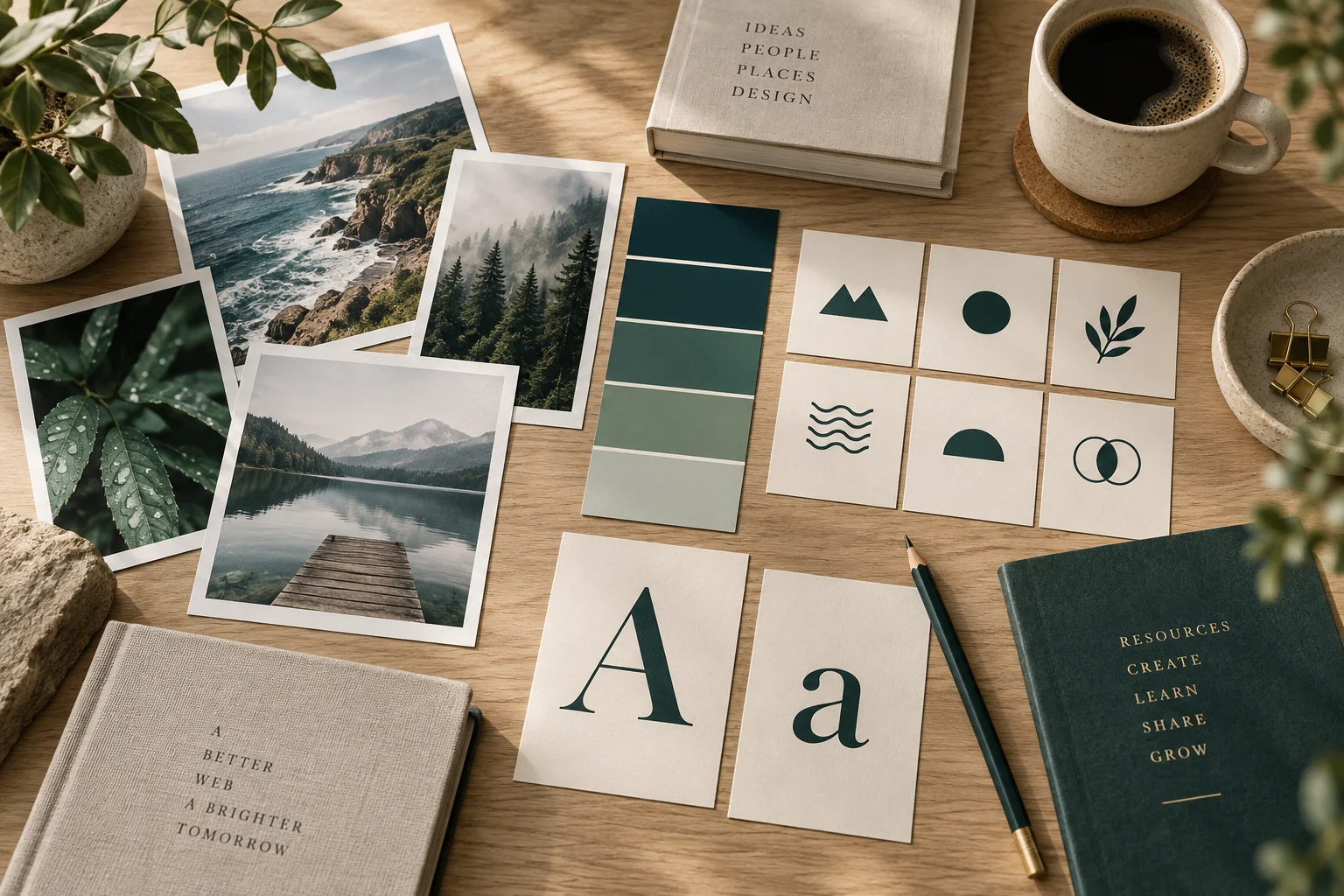
The right photograph can explain what a page is about before someone reads a sentence. A clear font makes that sentence easier to read. A familiar icon can help someone find the search button.
You do not need a large design budget to get those details right. You need a few useful sources, a consistent style and permission to use what you download.
Whether you are creating a business website, personal blog, portfolio or hobby project, here is a practical place to start—including when AI-generated images might help and why an AI-created logo deserves extra attention.
What are website “assets”?
Designers use “assets” to mean the materials used in a design. In this article, that means:
- Fonts: The styles of lettering used for headings and other text.
- Icons: Small symbols, such as a magnifying glass for search.
- Stock photos: Existing photographs made available for others to use under stated conditions.
A licence explains those conditions. Something being free to download does not necessarily mean you can use it however you like.
Choose fonts for reading first
A decorative font may suit a short heading but become tiring across several paragraphs. Try your actual text, including numbers and punctuation, at the size visitors will see on a phone.
One readable font family is often enough. You might add a second for headings, but a large collection usually makes a website harder to keep consistent.
Two places to consider are:
- Google Fonts: A useful starting point for free fonts. Check the licence supplied with your chosen family and keep it with your project files. Google provides the files and licensing information in its official font collection.
- Adobe Fonts: An option to consider when the font you want is available through an appropriate Adobe plan. Website use depends on Adobe’s hosting and subscription arrangements; check the web-font licensing guidance, particularly when someone is setting up a site for you.
With other font sellers, check that your licence covers web use—displaying the font as live text on a website. Permission to install a font on your computer for designing documents may not include that use.
Also ask how the font will load. Self-hosting means keeping the permitted font files on your website’s server instead of requesting them from another provider when someone visits. Your website provider can explain the licensing, privacy and maintenance considerations. You do not need to configure it yourself.
Use icons to clarify, not to make people guess
Icons work best when their meaning is clear. A magnifying glass beside the word “Search” is easier to understand than an unfamiliar symbol on its own.
Font Awesome is one established source to explore. It has free and paid options. Check whether the icon you want belongs to the free collection and follow the licence for the files you use. Its official free licence distinguishes between icon images, fonts and code, so keep the required notices when incorporating them into your site.
Before downloading another collection, see whether your theme already includes suitable icons. Choose a consistent style and make sure icon-only buttons have a meaningful label that assistive technology can read. Your designer can handle that part.
Find photos that suit your message
Choose a photograph because it helps explain the page, rather than simply filling an empty space. For a business, genuine photographs of your work or products can be more useful than a generic office scene. For a hobby blog, your own photographs may give readers a stronger connection to the subject.
When you need stock photography, consider:
- Unsplash: Its free collection permits commercial and non-commercial use under the Unsplash licence, with restrictions. Check whether an item is from that collection or the separately licensed Unsplash+ service.
- Pexels: Offers free photos and videos under its licence. Restrictions include implying endorsement by people or brands pictured and selling unaltered copies.
- Adobe Stock: An option for licensed stock images. Check the permitted use and licence level for the particular item. Images marked “editorial use only” have restrictions and should not be assumed suitable for advertising your services.
Paying for a stock photo does not make it exclusive to your website unless the licence specifically grants exclusivity. Other people may be able to license the same image.
Where do AI-generated images fit in?
Generative AI is software that creates content from instructions, often called a prompt. You might describe a peaceful garden illustration or ask for a background in your website’s colours. Some tools also let you edit an existing image that you have permission to use.
AI can be useful for exploring visual ideas, creating illustrations for abstract topics and trying different colours or compositions. For a personal project or a small business, it can make experimentation more affordable. However, subscriptions, generation limits and time spent correcting results can affect the final cost.
Use AI where illustration helps and genuine photography where authenticity matters. A generated gardening illustration could suit a hobby article. A photograph of your actual landscaping work is a better choice for showing a prospective customer what you have accomplished.
What should you check in an AI image?
A convincing first impression is only the beginning. Before using the result:
- Inspect the details. Check spelling, faces, hands, objects and any diagrams or instructions. A polished image can still contain mistakes.
- Check consistency. Several individually attractive images may not look like they belong on the same website.
- Check the practical fit. Try the image in its intended space and on a phone. Make sure there is room for any separate heading or button.
- Keep the message honest. Do not present invented people as your team or generated scenes as completed client work. If readers could mistake an illustration for evidence of a real event or result, explain what it represents.
Before uploading reference material, check that you have permission to share it with the service. Review its privacy, training and public-sharing settings before including client photographs, confidential designs or personal information.
Can you use AI images commercially—and do you own them?
There are three different questions: Does the tool permit your intended use? Can copyright protect the result? Could it infringe someone else’s rights? Permission to use the tool’s output does not settle the other two questions.
For example, OpenAI’s terms assign OpenAI’s rights in generated content to the user to the extent permitted by law, but also explain that other users may receive similar content. Adobe’s Firefly guidance allows commercial use of content generated with non-beta features. For beta features—features still being tested—check whether the product states an exception. Always check the terms for the particular tool, AI model and plan you use.
Copyright concerns legal protection for creative work. A provider saying you own a generated image does not guarantee that copyright protects every part of it. The Canadian Intellectual Property Office identifies AI authorship as a copyright policy question. Do not assume another country’s rules apply in Canada.
For comparison, the U.S. Copyright Office’s report distinguishes human creative contributions from purely AI-generated material. Under its analysis, using AI as an aid does not rule out copyright protection for human creative work, but writing prompts alone is not enough to establish authorship of the generated result.
Avoid assuming that “AI-generated” means exclusive, copyright-free or cleared for every use. Save the provider’s terms, creation date, tool used and records of your own creative work. For an important commercial asset, legal advice may be worthwhile.
Should you create your logo with AI?
AI can help you explore design ideas: perhaps a simple leaf symbol, a design based on your initials or several colour combinations. Treat those results as concepts to evaluate before adopting one as your identity.
A finished logo needs to do more than look appealing in a large preview. It should remain readable as a small website icon, work against different backgrounds and reproduce clearly in one colour. Check the exact spelling of your name and any lettering you add.
Ask for suitable production files. A vector logo uses editable shapes that can scale without becoming pixelated. A PNG or JPEG is made of pixels; renaming it to SVG does not turn it into a proper vector design. Depending on the tool’s output, the concept may need to be rebuilt and refined by a designer.
Also check for confusing similarity to existing brands. A trademark identifies the source of goods or services, and its requirements differ from copyright. The Canadian trademarks guide recommends searching existing marks. A search is a useful starting point, not a guarantee that a logo is clear to use or register.
For a business identity you expect to use for years, have a designer review the work and seek professional trademark advice where appropriate before launch. Redrawing an AI concept does not resolve a conflict with another business’s rights.
Check permission before publishing
Do not copy an image from a search result or another website simply because you can save it. Find the original source and the applicable terms.
Before using a file, ask:
- Does the licence cover my purpose? “Personal use only” may not cover a business website or a project that earns money.
- Is credit required? Giving credit to the creator is often called attribution. Follow the specified wording and placement when required.
- Can I crop or modify it? Permission to download is not permission for every alteration.
- Are other permissions relevant? Recognizable people, artwork, brands or private property can raise additional rights questions. Check the provider’s guidance and obtain advice if the intended use is unclear.
- Can I keep using it? Check subscription conditions, client-use rules and any limits on sharing or reselling the file.
Save the source link, creator’s name, download date, licence and any receipt in a folder for your website. That makes future checks much easier.
Prepare images for the website
A large original photograph may be far bigger than the space where it will appear. Resize and compress a copy—reduce its dimensions and file size—while checking that it still looks clear. Keep the original separately.
Check the crop on a phone as well as a computer. A face or important detail near the edge may disappear when the layout changes.
For an image that conveys information, provide suitable alternative text, often called alt text: a short description that communicates its purpose to someone who cannot see it. Purely decorative images can use an empty text alternative so screen readers can skip them. The right choice depends on the image’s role on that page; the W3C image guidance explains the distinction.
Keep important headings and instructions as actual page text rather than placing them only inside an image. They are easier to resize, read and update that way.
Help choosing and adding the right materials
You can start small: one readable font, a consistent set of icons and a few relevant photographs. Free resources may meet your needs; paid options make sense when they offer something specific you cannot otherwise find.
Econoweb Designs can help you compare stock resources and AI-assisted options, review the provider’s stated usage requirements, prepare images and add them to your website. If you already have favourites or an AI-generated concept, send us your questions or source links. We can help assess its visual and technical suitability and identify where specialist advice is needed.